11.3. Downloading and Installing a Module from Drupal.org
Goal
Download and install the contributed Admin Toolbar module, which allows you to easily browse through the administration section of the website.
Prerequisite knowledge
Site prerequisites
Composer must be installed to download modules. If you want to use Drush, Drush must be installed. See Section 3.2, “Concept: Additional Tools”.
Steps
To install a contributed module, first download the module with Composer. Then install it using either the administrative interface or Drush. If you are installing a custom module rather than a contributed module that is not available via Composer, skip the steps for downloading the module, and refer to Section 11.6, “Manually Installing Module or Theme Files”. Then return here and follow the steps for installing the module using either the administrative interface or Drush.
Download the contributed module with Composer
- On the Admin toolbar project page on drupal.org (https://www.drupal.org/project/admin_toolbar), scroll to the Releases section at the bottom of the page.
Copy the provided Composer command for the version of the module you want to install.
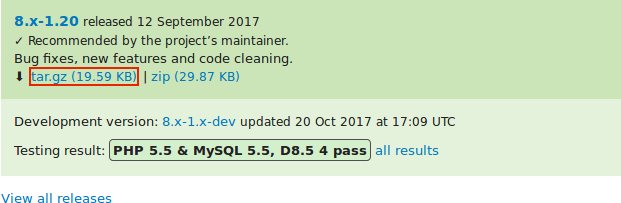
Alternatively, type the following command (substituting the short name of the module and desired version for
admin_toolbar:^3.5):composer require 'drupal/admin_toolbar:^3.5'
- At the command line, change to the root directory of your project. Paste the Composer command and execute it.
- You should see a message about the module being successfully downloaded.
Install the module using the administrative interface
- In the Manage administrative menu, navigate to Extend (admin/modules). The Extend page appears.
Locate the Admin toolbar module and check it.
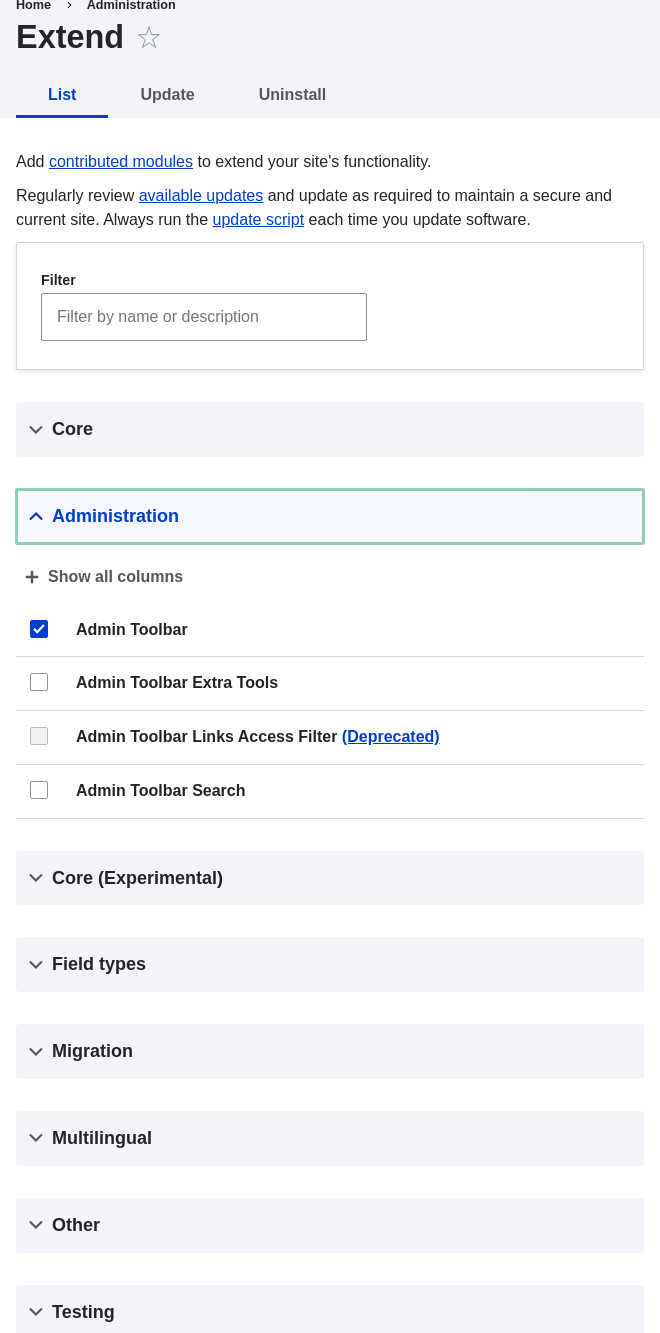
- Click Install to turn on the new module.
Install the module using Drush
Run the following Drush command, giving the project name (for example,
admin_toolbar) as a parameter:drush pm:enable admin_toolbar
- Follow the instructions on the screen.
Expand your understanding
- Verify that the contributed Admin Toolbar module is working by browsing through the menu in the administration section.
- Install and configure the contributed Pathauto module so that content pages in your site get nice URLs by default. See Section 5.1, “Concept: Paths, Aliases, and URLs” for more on URLs.
- If you do not see the effect of these changes in your site, you might need to clear the cache. See Section 12.2, “Clearing the Cache”.