5.6. Adding a Page to the Navigation
Goal
Add a page to the navigation. For example, the About page.
Prerequisite knowledge
Site prerequisites
The About page content item must exist. See Section 5.2, “Creating a Content Item”.
Steps
- In the Manage administrative menu, navigate to Content (admin/content).
Find the About page, and click Edit in that row. The content editing form appears.

- Click Menu settings on the right to expand it.
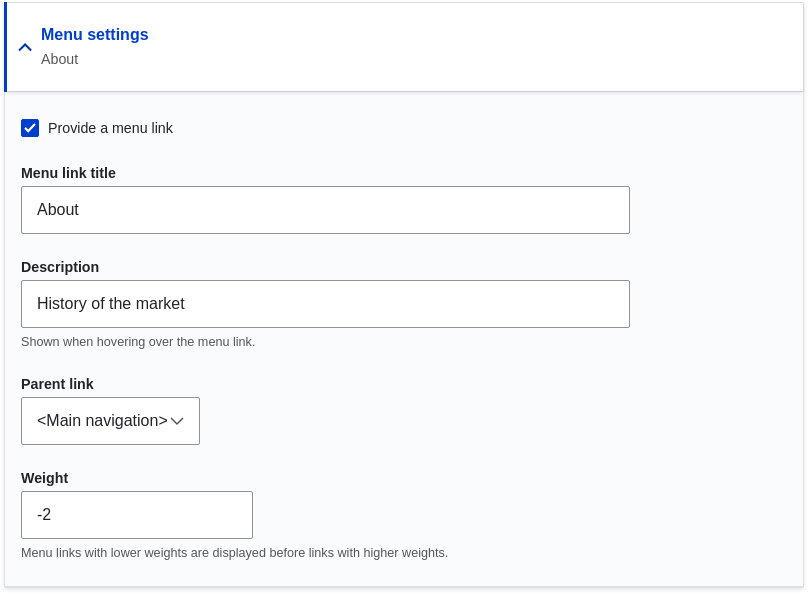
- Check Provide a menu link for the menu options to appear.
Enter values from the table below:
Field name Explanation Example value Menu link title
Title that will be displayed in the menu
About
Description
Text that will be displayed when a visitor hovers over the link
History of the market
Parent link
Location of the page in the menu hierarchy. For example, if you choose <Main navigation>, the page will appear in the highest level of the navigation. By choosing another menu link as parent, you can create a menu hierarchy of multiple levels.
<Main navigation>
Weight
The order in which the page should appear in the menu (lower-weighted menu links will be shown before higher-weighted menu links)
-2
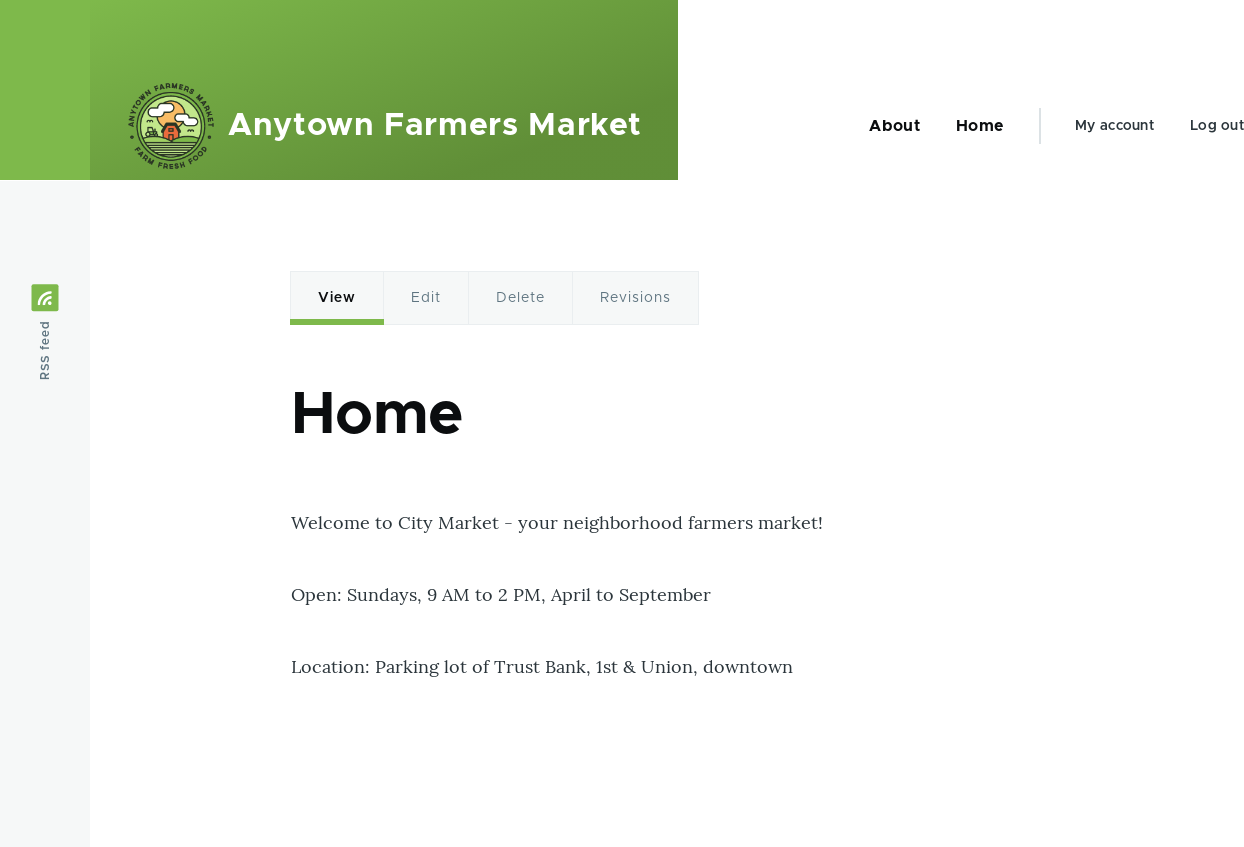
Click Save to save the changes. Click Home or Return to site in the navigation bar to see the result, which could look like the picture below.